

When it comes to managing your cryptocurrency, Trust Wallet is a popular choice among users due to its user-friendly interface and robust security features. However, with digital assets, maintaining a backup of your wallet is crucial. If you’ve lost access to your Trust Wallet or need to restore it on a new device, you can do so using your iCloud backup on iOS or Google Drive backup on Android. This guide will walk you through the steps to recover your Trust Wallet safely and efficiently.
Recovering Trust Wallet on iOS Using iCloud Backup
Step 1: Reinstall Trust Wallet
If you’ve lost access to your Trust Wallet, the first step is to reinstall the app from the App Store. Make sure you’re using the same Apple ID that was used to create the original backup.
Step 2: Open Trust Wallet
Once installed, open the app and go through the initial setup. When prompted to create a new wallet or restore an existing one, select “I already have a wallet.”
Step 3: Select the Recovery Option
In the recovery options, you’ll see the option to restore your wallet using iCloud Backup. This option will appear if you had enabled iCloud Backup in your previous Trust Wallet settings.

Step 4: Authenticate with iCloud (if not authenticated earlier)
You will be asked to sign in with your Apple ID and authenticate your identity. Once authenticated, Trust Wallet will automatically search for available backups.
Step 5: Restore Your Wallet
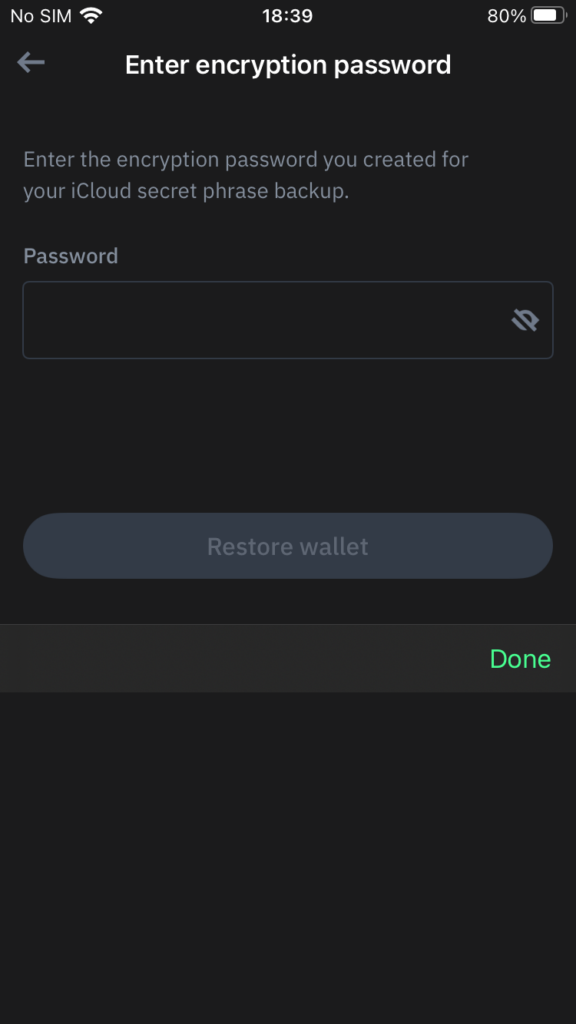
After locating the backup, follow the prompts to restore your wallet. Enter your password that you have set up during the backup. Trust Wallet will securely retrieve your wallet’s recovery phrase from the iCloud backup and restore your account, including all the assets associated with it.
Step 6: Verify Your Assets
After the restoration is complete, verify that all your assets have been restored correctly. Check your wallet balances and ensure that all your tokens are displayed as expected.
Recovering Trust Wallet on Android Using Google Drive Backup
Step 1: Reinstall Trust Wallet
On your Android device, reinstall the Trust Wallet app from the Google Play Store. Ensure you are logged in with the same Google account that was used to create the original backup.
Step 2: Launch Trust Wallet
Open the app and start the setup process. Select “I already have a wallet” when prompted.
Step 3: Choose Google Drive Backup
You will be presented with several recovery options. Choose the Google Drive backup option if you had enabled this feature in your Trust Wallet previously.
Step 4: Authenticate with Google
Authenticate using your Google account credentials. Trust Wallet will then search for any available backups stored on your Google Drive.
Step 5: Restore Your Wallet
Once the backup is found, Trust Wallet will guide you through the process of restoring your wallet. Enter your password that you have set up during the backup. The app will use the recovery phrase stored in Google Drive to recreate your wallet and restore your assets.
Step 6: Confirm Asset Restoration
After the process completes, check your wallet to ensure all your cryptocurrency assets have been restored. Make sure all the tokens you previously held are visible and have the correct balances.
Important Considerations
Security and Backup Management
- Never share your recovery phrase: The recovery phrase is the key to accessing your wallet. If someone else obtains it, they can gain control over your funds.
- Regularly update your backups: Ensure your backups are up to date whenever you add new assets or make significant changes to your wallet.
- Enable two-factor authentication (2FA): Whenever possible, enable 2FA on your Google or Apple accounts to add an extra layer of security.
What If Backup Options Are Not Available?
If the iCloud or Google Drive backup options are not available or you never set them up, your best option is to manually enter your 12-word recovery phrase. This phrase was given to you when you first created your Trust Wallet. Always store this phrase securely, preferably in multiple physical locations.
Conclusion
Recovering your Trust Wallet using iCloud or Google Drive backup is a straightforward process if you’ve previously set up the backup options. By following these steps, you can easily regain access to your wallet and continue managing your digital assets securely. Remember, the key to safeguarding your crypto assets lies in securely managing your recovery phrase and ensuring that your backups are up to date and protected.
Stay safe, and happy trading!